How to Make Gift Tag Stickers in Canva Using Clipart to Sell
Homemade gifts hit different — but a plain printer label? Meh.
Add some cute clipart, a little Canva magic, and suddenly your gift wrap looks intentional instead of “I did this at midnight with one eye open.”
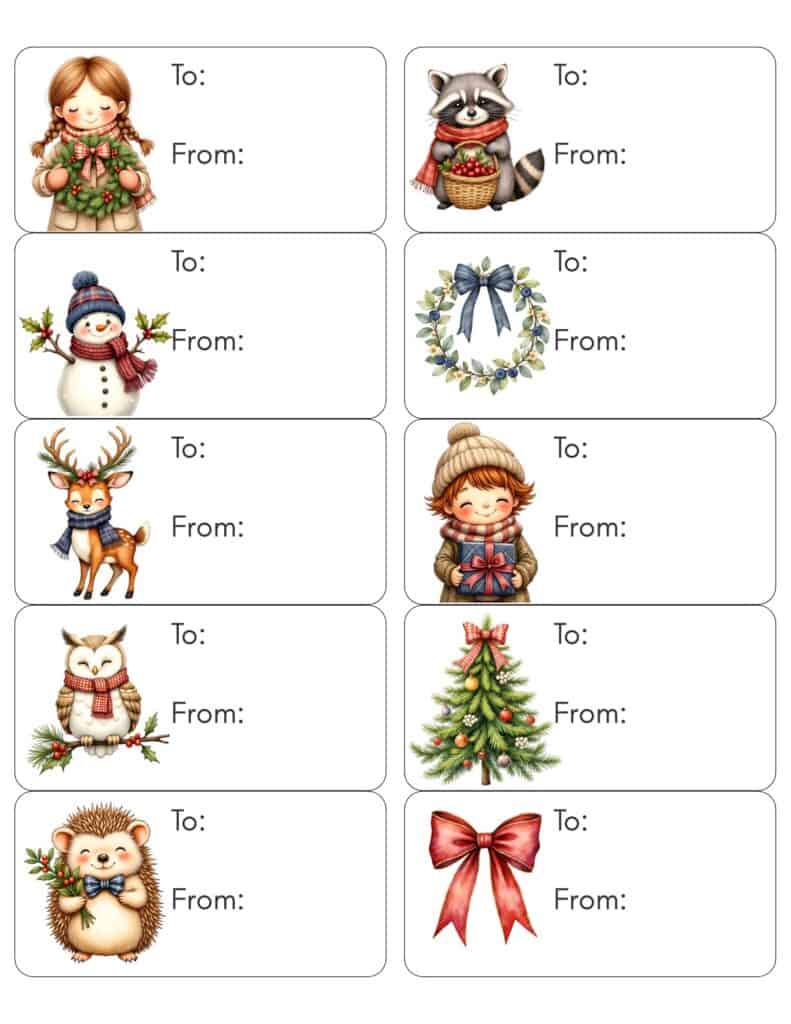
This quick beginner-friendly tutorial shows you how to turn a free Avery label template + clipart into printable gift tags you can use at home OR sell on Etsy and Gumroad. No fancy software, no design degree, no tears.
Rather watch instead you can tune in right here
Why Make Your Own Tags in Canva?
Store-bought tags all look the same. When you design your own:
- You pick the colors
- You pick the fonts
- You pick the vibe
- And everything can match your wrapping paper or your brand
Plus, once you make a master sheet, future designs will take you under 10 minutes.
(Yes, really. I’ve done it half-asleep.)
What You Need
- A computer
- A free Canva account
- A free Avery template (downloadable at https://www.avery.com/templates)
- Commercial-use clipart (don’t mess around with licensing)
- A printer + label sheets OR cardstock
That’s literally it.
STEP 1 — Grab a Free Avery Label Template
Head to Avery’s template library:
👉 https://www.avery.com/templates
Search for the 2 × 4 inch label sheets (they’re super common and give you plenty of room for cute art). Make sure it’s:
- Letter size (8.5 × 11″)
- Labels running sideways across the sheet
Download the PDF version. Avery will make you sign up for a free account, but it’s quick.
Keep that PDF handy — we’re dragging it into Canva next.
STEP 2 — Set Up Your Page in Canva
- Open Canva
- Create a new 8.5 × 11″ design
- Name your file something that makes sense (ex: Christmas Gift Tags – 2×4)
Upload the PDF from Avery.
Drop it onto your blank page and stretch it so it fits edge-to-edge.
This is your guide — not something your customers will print with big black lines. Just a layout helper for you.
STEP 3 — Add Your “To / From” Text
Click Text → Add a little heading → Type To.
Choose a clean, easy font. (Glacial Indifference looks great, but pick whatever feels cute.)
Format it:
- Adjust size
- Change the color to a soft gray (it looks nicer than stark black)
Copy/paste it, change the second one to From, and align them left.
Now group the two text boxes.
Copy/paste that group into every label spot on the first row.
Tip:
Hold Shift when dragging sideways — Canva keeps them perfectly straight.
Once the first row looks lined up and balanced, group the entire row, copy it, and paste it down the page. Boom. You just saved yourself 10 minutes.
STEP 4 — Add Your Clipart (The Fun Part)
Upload your clipart to Canva.
Pick your first image and drop it into the label above the “To / From.”
A few quick rules:
- Don’t let the art spill into the next label
- Keep breathing room around the edges
- Resize by dragging the corners (never stretch by the sides)
Repeat for the rest of the row:
- Hedgehog
- Raccoon
- Christmas mug
- Cozy little house
- Snowman with a scarf
Whatever matches your theme.
Once the whole row is done, group the row and copy/paste it down the page again. Swap out the clipart if you want a variety pack.
By the last row you’ll feel like a Canva speed demon.
STEP 5 — Finalize & Export Your Files
You’re going to make TWO versions of your design:
1. With cut lines
Perfect for people printing on cardstock and cutting by hand.
2. Without cut lines
Perfect for people printing on real Avery sticker sheets.
To do that:
- Duplicate your finished page
- Delete the template lines on one of them
Now export:
- PDF Print → best for customers printing at home
- PNG → great for Cricut/Silhouette users or digital planners
A Quick Note on Licensing (The Simple Version)
- Use commercial-use clipart
- Always flatten your final sheet so customers can’t pull individual PNGs out
Flatten = exporting as a single PDF or PNG page where everything is merged.
Super simple. Super safe.
Selling Your Gift Tags on Etsy or Gumroad
Once your file is pretty, don’t let it sit on your computer like a sad forgotten cookie.
List it on:
- Etsy
- Gumroad
Tell buyers:
- The label size (2×4)
- What paper it works with (add the Avery number)
- What file types they’ll get
- How they can use it
Bundle multiple styles together for an instant niche collection:
- Cute woodland animals
- Minimal black & white tags
- Kids’ bright holiday stickers
This is an easy year-round seller and perfect for seasonal boosts.
Want Free Clipart Ideas?
Grab my free guide
You get 10 proven niches + 10 free designs to spark ideas for your next printable.
Final Tips
- Zoom in before exporting to make sure nothing is crossing lines
- Keep spacing clean using Canva’s Align + Tidy tools
- Test print your sheet once — trust me, it’s worth it
And remember…
Progress beats perfection. Every. Single. Time.